TetraKits
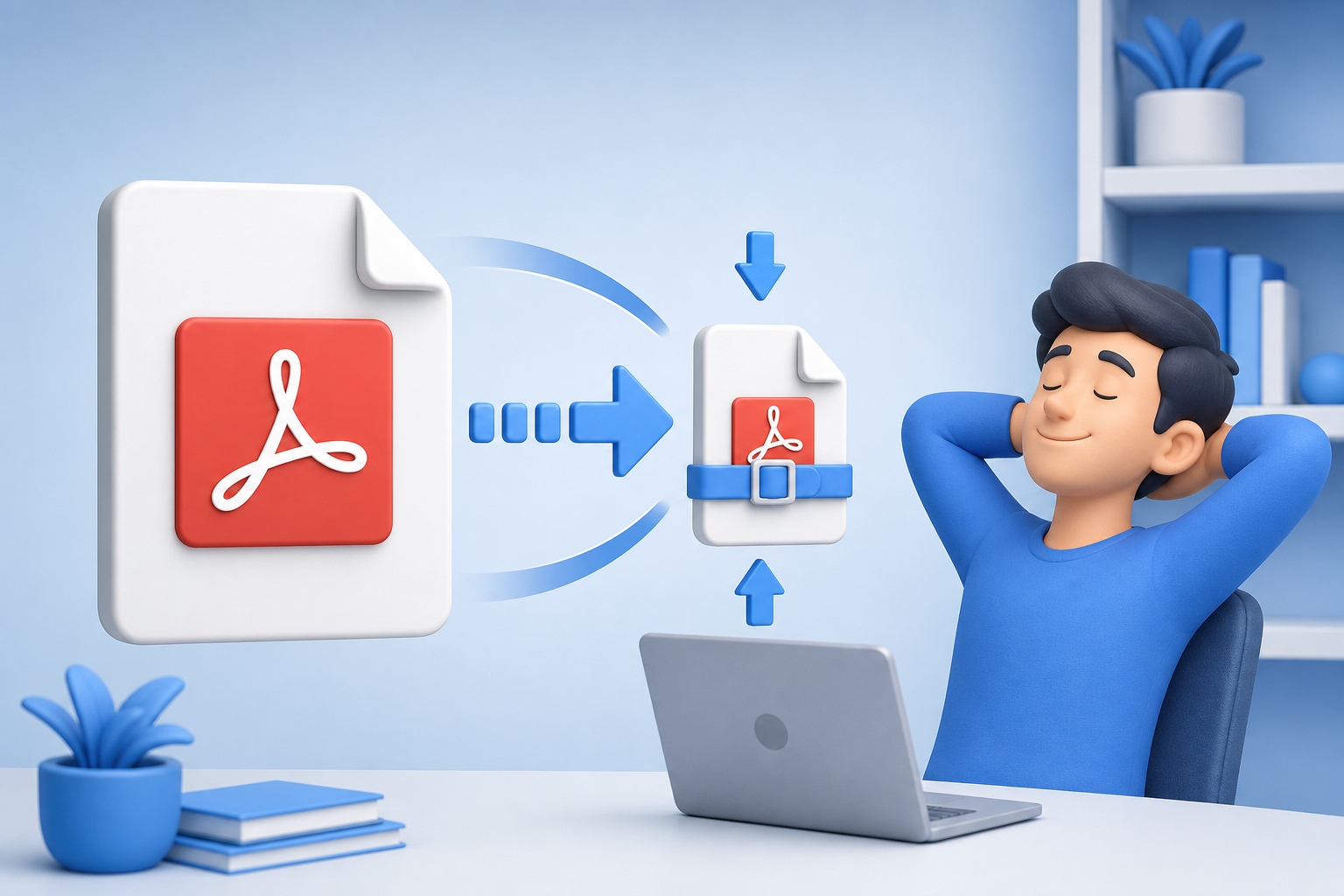
Email bounces at 25 MB. Upload forms timeout on slow connections. Cloud drives sync sluggishly when folders fill with scan-heavy PDFs. Compression reduces file size so documents travel faster — but aggressive compression can turn crisp text into muddy artifacts if you pick the wrong mode for the wrong source material.
This guide explains how to compress PDF online with TetraKits Compress PDF, when to use light, balanced, or maximum compression, how text-native PDFs behave differently from scanned pages, and why in-browser processing keeps sensitive files off third-party servers.
Why compress PDF files
PDFs grow large for predictable reasons: embedded photos, uncompressed scans, full-font embedding, and redundant object streams. Compression targets those weights without necessarily changing page count or layout.
You compress when:
- Email or portal uploads enforce size caps.
- Mobile users download handouts on cellular data.
- Websites host PDFs where page speed affects SEO.
- Backup and sync costs scale with bytes stored.
- Batch archives need reasonable footprint without reauthoring.
TetraKits never delivers a file larger than your original — if compression cannot help, you keep the source size rather than wasting a download on a bigger blob.
Light, balanced, and maximum modes
Three modes trade size reduction against visual fidelity. Match mode to content type.
Light compression
Best for text-heavy PDFs born from Word, Google Docs, or InDesign exports. Light mode restructures internal streams and optimizes images modestly while keeping typography sharp. Use for contracts, essays, and forms where readability is paramount.
Balanced compression
Suits mixed documents: body text plus charts, photos, or moderate graphics. Balanced mode applies stronger image downsampling while preserving acceptable print quality for office use. Default choice when unsure.
Maximum compression
Targets scan-heavy PDFs and photo catalogs where file size dominates concerns. Maximum mode aggressively compresses embedded images — ideal for archival scans, signed document photos, and internal reference where pixel-perfect art is secondary.
Mode selection cheat sheet
- Mostly selectable text → Light
- Reports with some screenshots → Balanced
- Phone photos of paper → Maximum
Text PDFs vs. scanned documents
Not all PDFs compress the same way because not all PDFs store content the same way.
Text-native (vector) PDFs
Characters are described as fonts and glyphs; images are occasional. Light compression already yields meaningful savings by optimizing structure without touching text curves. You may see modest percentage drops — that is normal when images are not the bulk of bytes.
Scan-only PDFs
Each page is a bitmap photo of paper. Maximum compression re-encodes those bitmaps — dramatic size drops possible with visible softness on fine print. If recipients must read 8pt footnotes, preview before sending.
Mixed sources
Reports exported to PDF with embedded charts behave like mixed documents — balanced mode usually wins. Run a quick test: compress one representative page mentally by trying balanced first, maximum only if still too large.
Step-by-step: compress PDF online
- Open Compress PDF on TetraKits — free, no signup.
- Upload your PDF by drag-and-drop or browse.
- Choose compression mode: Light, Balanced, or Maximum based on content type above.
- Start compression and wait for browser processing to complete.
- Compare sizes shown in the interface — TetraKits reports savings transparently.
- Download the compressed file and spot-check random pages for acceptable quality.
- Retry with a different mode if size or quality misses your target.
For multi-document projects, compress after Merge PDF so you optimize the final attachment once rather than each source separately — unless only one chapter carries heavy images.
Browser privacy benefits
Financial statements, medical PDFs, and unreleased creative briefs should not ride through unknown cloud compressors. TetraKits Compress PDF runs locally in your browser — files are processed on your device without TetraKits storing them on servers during compression.
That model fits regulated workflows, client services agencies, and anyone on a shared computer who can delete local downloads after use.
Quality and size tips
- Compress once meaningfully — recompressing the same file repeatedly with maximum mode yields diminishing returns and cumulative blur.
- Fix at source when possible — export lower-resolution images in authoring tools before PDF export for best control.
- Split before compressing — if only one section is huge, Split PDF isolates it for maximum mode while light-compressing the rest separately.
- Test print if physical delivery matters — screen-acceptable compression may fail on paper.
- Keep uncompressed masters — archive originals before destructive workflows.
Smart PDF compression is about matching mode to material — light for text, balanced for everyday business docs, maximum for scans. TetraKits makes that choice explicit, processes privately in your browser, and guarantees you never download a “compressed” file bigger than what you started with.
Frequently asked questions
Which compression mode should I use for a text PDF?
Start with Light mode. Text-native PDFs rarely need aggressive image compression, and Light preserves typography while still reducing file size through structural optimization.
Will compressing a PDF reduce text quality?
Light and Balanced modes preserve selectable text quality. Maximum mode targets embedded images; text may remain sharp while photos soften. Always preview output before distributing.
Can TetraKits make my PDF larger?
No. If compression cannot reduce size, TetraKits returns a file no larger than your original — you do not waste bandwidth on a failed attempt.
Is online PDF compression safe for confidential files?
TetraKits compresses locally in your browser without uploading files to TetraKits servers for storage. Use trusted devices and remove downloads afterward on shared machines.
Should I compress before or after merging PDFs?
Usually after merging, so you optimize the final attachment once. Compress individual sources first only when one oversized scan dominates an otherwise text-light bundle.