TetraKits

A 200-page PDF rarely needs to travel as one file. Maybe you only want pages 12–18 for a client excerpt, or you need every page as a separate attachment for a workflow tool. Splitting PDFs extracts exactly what you need without re-scanning or copy-pasting into Word — and doing it online means no desktop license or IT install request.
This guide explains how to split PDF pages online with TetraKits Split PDF, the three extract modes (page ranges, every N pages, each page separately), privacy benefits of browser processing, and how splitting pairs with Merge PDF when you reorganize documents.
Why split PDF pages online
PDF was designed as a final-form format — editing feels rigid compared with Google Docs. Splitting is the surgical tool: keep the PDF fidelity, change the scope.
Common motivations:
- Extract one chapter from a manual for a customer ticket.
- Separate signed pages from unsigned drafts in a closing packet.
- Break a scanned batch into individual records.
- Reduce attachment size by sending only relevant pages.
- Feed single pages into e-signature tools with page limits.
Online splitters remove friction when you are on a machine without Adobe Acrobat or when corporate policy blocks new software installs.
Extract modes explained
TetraKits Split PDF offers modes tuned to different jobs. Pick the one that matches your output shape.
Extract pages (specific ranges)
Enter page numbers or ranges — for example, 1–3, 7, 10–12 — to produce one PDF containing only those pages in order. Ideal for pulling exhibits, invoices, or signature pages from a master document.
Split every N pages
Divide the document into equal chunks every N pages. Useful when a scanner merged multiple receipts into one file and you want pairs or sets separated consistently.
Each page as a separate file
Export every page as its own PDF, often downloaded as a ZIP archive. Perfect for bulk uploading pages to a portal that accepts only single-page uploads, or for naming files programmatically afterward.
Choosing the right mode
Ask whether your output should be one PDF or many. Range extract → one file. Each page → many files. Every N pages → predictable batching without manual range typing.
Step-by-step: split PDF pages online
- Open Split PDF on TetraKits.
- Upload your PDF via drag-and-drop or file picker.
- Select split mode: extract ranges, every N pages, or each page separately.
- Configure parameters — enter ranges or interval N as prompted.
- Run split and wait for local processing to finish.
- Download the resulting PDF or ZIP and verify page count and content.
Preview thumbnails when available before confirming destructive exports — especially on legal documents where page numbers in footers must remain correct.
Privacy and local processing
Split documents are often the same sensitive files you would hesitate to upload anywhere: medical records, contracts, tax forms. TetraKits processes splits in your browser so content stays on your device during the operation rather than being stored on remote servers.
Best practices:
- Use personal or trusted devices for confidential PDFs.
- Delete downloads from shared computers after use.
- Keep master files encrypted at rest when regulations require it.
Practical use cases
Legal and real estate
Extract executed signature pages for recording while retaining the full closing PDF internally.
Finance and accounting
Split bundled bank statement PDFs into monthly files for archival naming conventions.
Education
Separate exam sections or reading packets by chapter for LMS uploads with file size caps.
HR
Pull individual W-4 or tax pages from bulk onboarding scans without re-scanning per employee.
Creative and print
Extract approved spreads from a full catalog PDF for vendor proofs.
Combining with Merge PDF
Split and merge are inverse operations used together constantly:
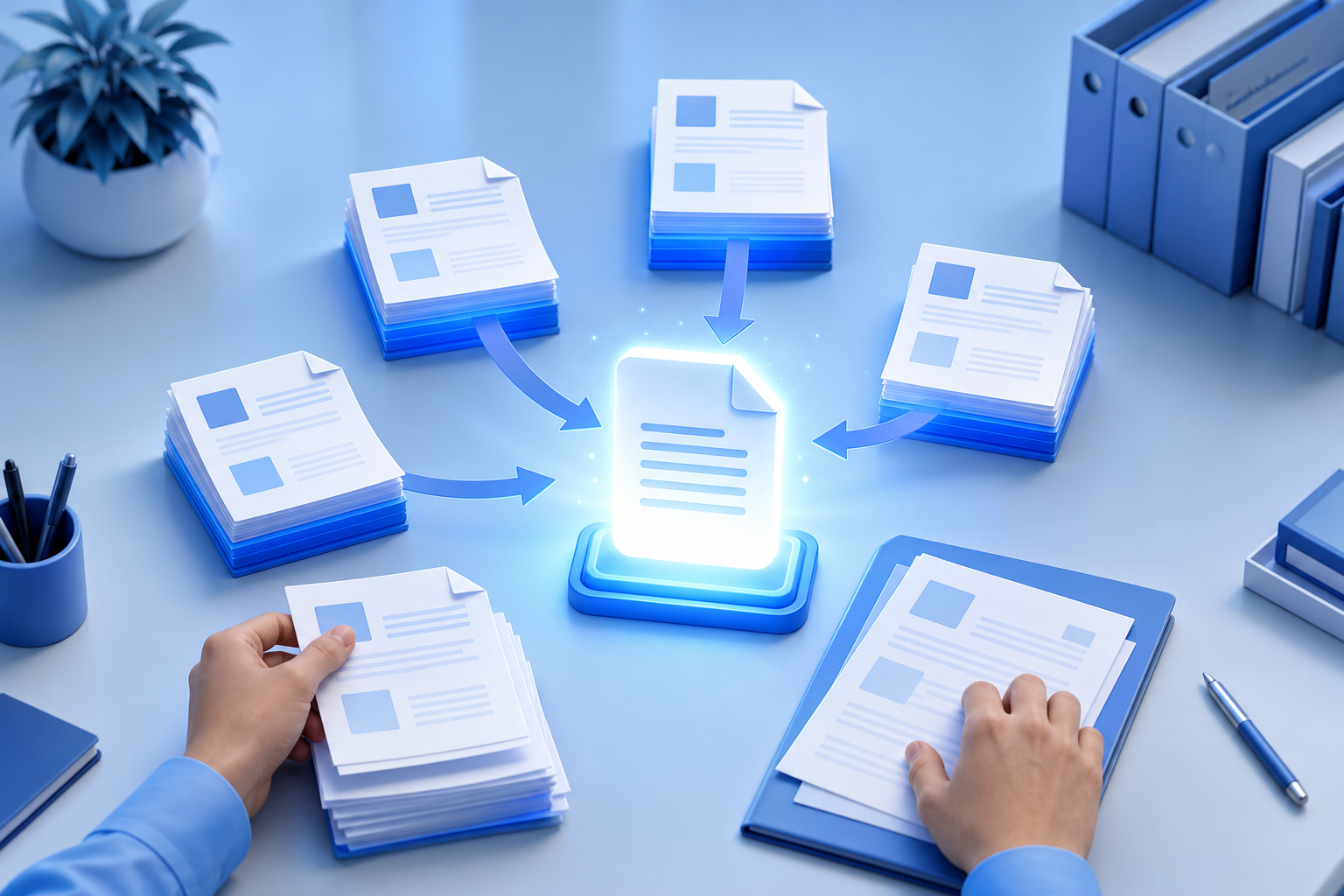
- Split a master PDF into chapters, reorder folders, merge into a new compilation.
- Extract pages from multiple sources, then Merge PDF into one client deliverable.
- Remove obsolete sections by splitting them out and merging the remainder.
After restructuring, run Compress PDF if the new package must email cleanly. Split → merge → compress is a reliable three-step pipeline for document ops without desktop software.
Splitting PDF pages online should be precise, private, and mode-flexible. TetraKits gives you range extract, interval splitting, and per-page export in one browser tool — so you send exactly the pages your audience needs and nothing more.
Frequently asked questions
Can I split a PDF without Adobe Acrobat?
Yes. TetraKits Split PDF runs in your browser with no install or subscription. Upload the file, choose a mode, and download the results.
How do I extract only one page from a PDF?
Use extract mode and enter the single page number, such as 5. The tool outputs a one-page PDF containing that page only.
Will splitting reduce text quality?
Splitting copies original page content without re-rendering as low-resolution images. Quality matches the source PDF for each extracted page.
Can I split password-protected PDFs?
Password-protected files must be unlocked first — browser tools cannot split encrypted PDFs without the password. Remove protection with authorized credentials before splitting.
Are my files uploaded to TetraKits when I split?
Processing happens locally in your browser. TetraKits is designed not to store your PDF on servers during standard split operations.