TetraKits
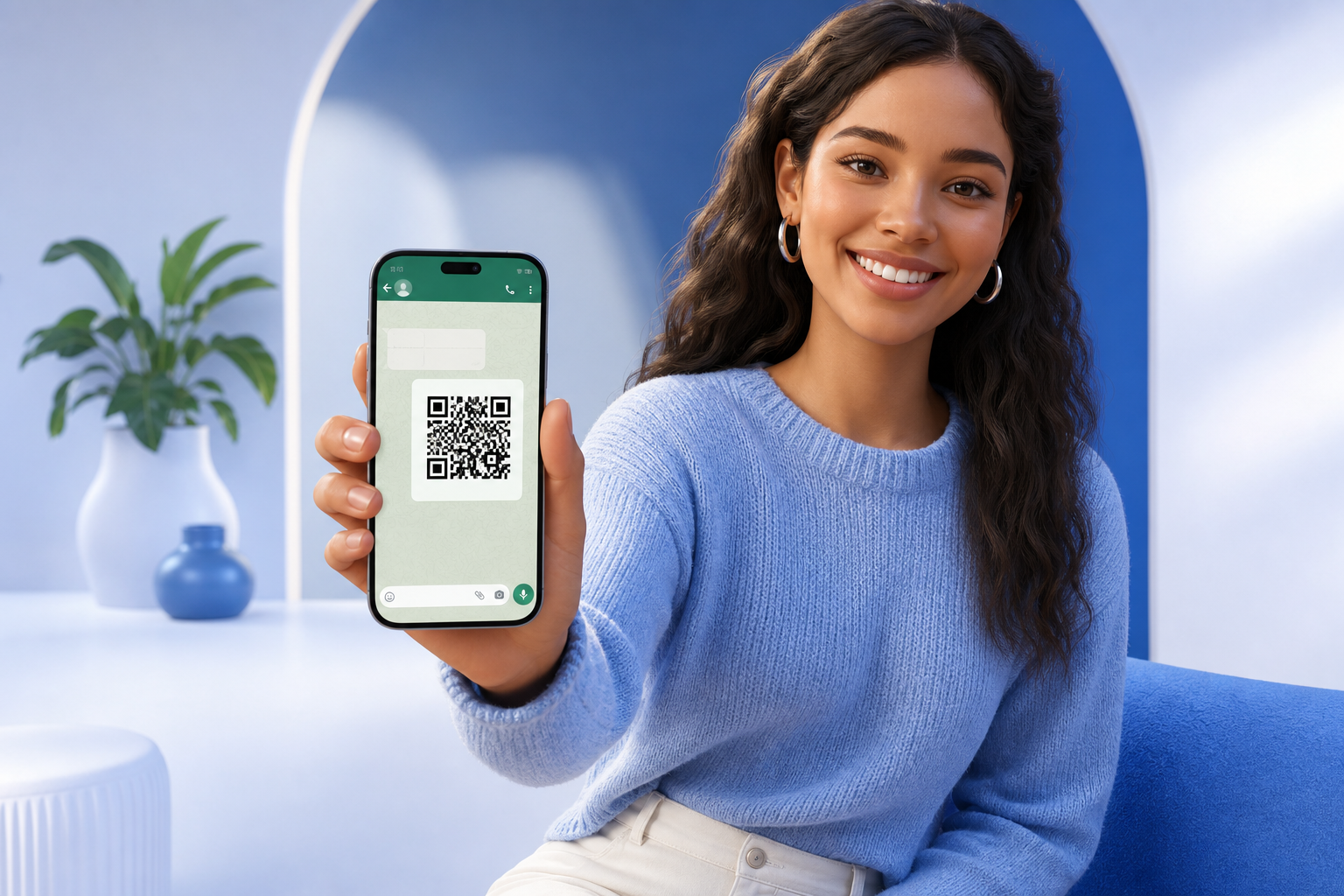
A WhatsApp QR code turns a simple scan into an instant conversation. Instead of asking customers to type your phone number, save your contact, and open the app manually, they point their camera at your code and land in a chat with you in seconds. For small businesses, event organizers, and support teams, that small convenience often translates into more messages, faster responses, and fewer abandoned inquiries.
This guide walks through everything you need to create a reliable WhatsApp QR code: how wa.me links work, where to use them, how WhatsApp Business fits in, and how to generate a print-ready code with the free QR Code Generator on TetraKits — no signup, no watermarks, and no server uploads.
What is a WhatsApp QR code?
A WhatsApp QR code is a standard QR symbol that encodes a URL. When someone scans it, their phone opens WhatsApp and starts a chat with the phone number embedded in that link. The experience feels native: there is no app store detour, no login page, and no copy-paste friction.
Unlike static contact cards, a WhatsApp QR code is action-oriented. It does not merely display your number — it launches messaging immediately. That makes it ideal for storefront windows, product packaging, trade show booths, restaurant tables, and any place where you want a visitor to reach you while their intent is highest.
How scanning works on iPhone and Android
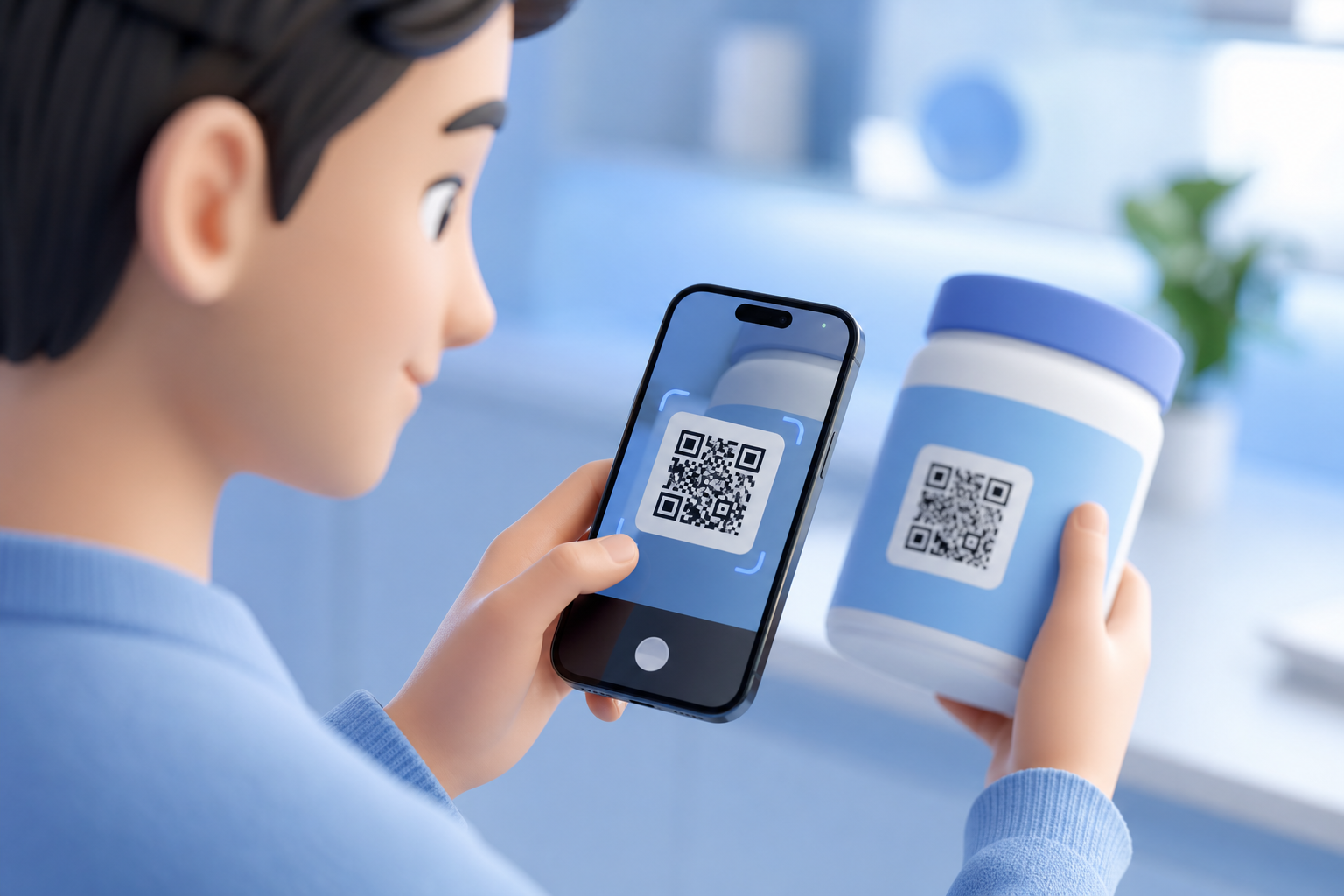
On most modern phones, the built-in camera app recognizes QR codes automatically. Tapping the notification opens the wa.me link, which redirects into WhatsApp. Some users prefer a dedicated QR reader; either approach works as long as the code is sized and printed correctly. Always test on both platforms before you commit to a large print run.
Understanding wa.me links
Every WhatsApp QR code starts with a wa.me link. WhatsApp provides this short URL format so you can share a direct chat link anywhere on the web, in email signatures, or inside a QR payload.
The structure is straightforward: https://wa.me/ followed by your full international phone number with no plus sign, spaces, dashes, or parentheses. For example, a United States number might look like https://wa.me/14155552671, where 1 is the country code and the rest is the local number.
Optional pre-filled messages
You can append a text parameter so the chat opens with a draft message already typed. The format is https://wa.me/14155552671?text=Hello%20I%20need%20help, where spaces and special characters are URL-encoded. This is useful for support lines (“Scan to report an issue”), restaurant reservations, or event check-ins. Keep the default message short and human — long pre-filled text can feel spammy.
Country codes matter
The most common wa.me mistake is omitting or misplacing the country code. A number that works when shared locally may fail for international visitors if the code is wrong. Double-check against WhatsApp’s own “click to chat” documentation for your region before generating your QR code.
Business use cases for WhatsApp QR codes
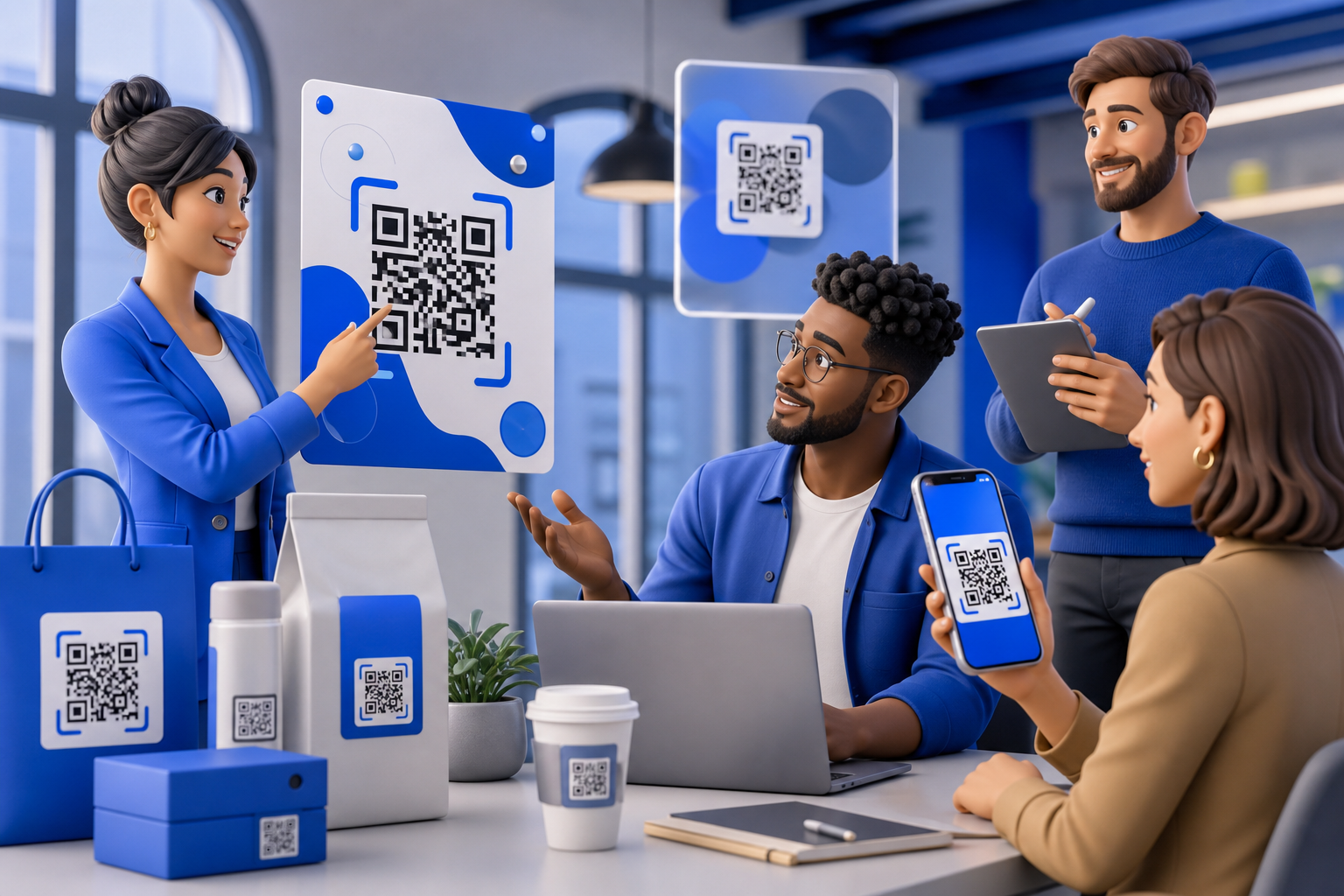
WhatsApp QR codes work wherever a physical touchpoint meets a digital conversation. The best deployments pair the code with a clear reason to scan.
- Retail and hospitality: Place codes on receipts, table tents, or fitting-room mirrors so customers can ask about sizes, hours, or special orders without waiting in line.
- Customer support: Print codes on product manuals, warranty cards, and shipping inserts so buyers reach the right team instead of a generic contact form.
- Events and conferences: Add codes to badges, programs, and signage for session questions, networking, or feedback collection.
- Real estate and services: Yard signs and business cards with WhatsApp codes let prospects message while they are still on-site.
- Marketing campaigns: Combine QR codes with limited-time offers — “Scan for 10% off your first order” — to measure engagement from print ads and flyers.
Because TetraKits generates QR codes locally in your browser, you can create separate codes for different campaigns or locations without worrying about account limits or per-code fees.
WhatsApp Business setup
WhatsApp Business is a free app built for companies that message customers regularly. It adds business profiles, catalog features, quick replies, away messages, and labels for organizing conversations. Your wa.me link works the same whether you use WhatsApp or WhatsApp Business — the difference is what happens after someone messages you.
Business profile essentials
Before printing hundreds of QR codes, complete your WhatsApp Business profile: business name, logo, description, address, hours, and website. When a new contact opens your chat, that profile builds trust immediately. An empty or generic profile makes scans feel less credible.
Quick replies and automation
Set up quick replies for FAQs (“What are your hours?”, “Do you ship internationally?”) and an away message for off-hours. Pair these with a pre-filled wa.me message on your QR code so you know which campaign or location drove the scan. For example, ?text=Hi%20from%20the%20Main%20St%20poster helps you track offline marketing performance inside the conversation thread.
Step-by-step: create a WhatsApp QR code
Follow these steps to go from phone number to a downloadable QR code in under two minutes.
- Build your wa.me URL. Combine your country code and phone number. Add an optional
?text=parameter if you want a pre-filled greeting. - Open the TetraKits QR Code Generator. The tool runs entirely in your browser — your link is never sent to a server.
- Select Website mode and paste your full wa.me link into the URL field.
- Customize appearance (optional). Adjust foreground and background colors to match your brand, but keep strong contrast for reliable scanning.
- Preview and test. Scan the on-screen code with your phone before downloading. Confirm WhatsApp opens the correct chat.
- Download your file. Export as PNG for digital use or SVG for professional print. Both formats are available without watermarks.
- Add context near the code. Include a short label such as “Scan to chat on WhatsApp” so users know what to expect.
Print sizes and placement
QR code reliability depends as much on physical size and contrast as on the link itself. A code that looks fine on a laptop screen may fail on a poster viewed from three meters away if it is too small.
Minimum sizes
For close-range materials — business cards, packaging, table stickers — aim for at least 2 cm × 2 cm (roughly 0.8 inch square). For posters, window decals, and trade show banners, increase to 3–5 cm or larger depending on viewing distance. When in doubt, print a test sheet and scan from the farthest expected distance.
Contrast and quiet zone
Keep the foreground significantly darker than the background. Avoid inverted light-on-dark codes unless you verify them on multiple devices. Leave a clear margin — the “quiet zone” — around the code with no text, logos, or graphics touching the modules. Cropping the margin is a frequent cause of scan failures.
Where to put the code
Place codes at eye level when possible, away from glossy reflections and creases. On menus and flyers, put the WhatsApp QR near your call to action rather than buried in fine print. If you also share PDF handouts, you can embed the same code in those documents for a consistent experience.
Common mistakes to avoid
Even a perfectly generated QR code underperforms when the underlying setup is wrong. Watch for these pitfalls before you print.
- Wrong phone format: Missing country codes, extra symbols, or leading zeros break wa.me links.
- Broken or expired links: If you change numbers, regenerate and replace every printed code.
- Low contrast or busy backgrounds: Decorative backgrounds behind the code reduce scan success.
- Codes too small for context: A tiny code on a billboard is useless; scale to the environment.
- No label or value proposition: Users hesitate to scan mystery codes. Tell them what they get.
- Skipping real-device tests: Always scan with both iPhone and Android on mobile data, not only on office Wi‑Fi.
- Using server-based generators that log URLs: For customer-facing support lines, prefer privacy-friendly tools like TetraKits that process locally.
WhatsApp QR codes are one of the fastest ways to connect offline audiences to a real conversation. With a correct wa.me link, a tested design, and the free QR Code Generator, you can deploy professional codes on business cards today and on full marketing campaigns tomorrow — without subscriptions or signup walls.
Frequently asked questions
Is a WhatsApp QR code free to create?
Yes. The wa.me link format is provided by WhatsApp at no cost, and TetraKits lets you generate unlimited QR codes for free with no signup. You only pay for your own printing or advertising if you choose to distribute the code offline.
Do I need WhatsApp Business to use a QR code?
No. Standard WhatsApp and WhatsApp Business both work with wa.me links. Business is recommended for companies that need profiles, catalogs, labels, and automated replies, but the QR code itself functions the same either way.
Can I add a pre-written message when someone scans?
Yes. Append ?text=Your%20message to your wa.me URL, with URL encoding for spaces and special characters. Paste the complete link into the TetraKits QR generator to produce a code that opens WhatsApp with your draft message ready to send.
What is the best file format for printing?
For professional print shops, SVG or EPS vector formats scale without quality loss. For office printers and quick flyers, high-resolution PNG works well. TetraKits supports multiple export formats from the same wa.me link.
Will my WhatsApp number be visible to scanners?
When someone scans, WhatsApp opens a chat with your number — that is the purpose of the code. Do not publish a WhatsApp QR code unless you are comfortable receiving messages from the public. Use WhatsApp Business tools to manage volume and set expectations.